Introduction
In setting up Revit parameters, controlling Yes/No parameters is a key requirement. However, user usually get the trouble when Revit ignore text values as “True” or “False” in Formula field. This Article is going to break down the technical reason and give the optimize solve through using comparison operator.
Part I: Functionality of Boolean Parameters
In contrast to standard programing languages where True/False values are assigned directly, the Revit Formula environment relies on the evaluation of mathematical expression.
To achieve a desired result output, comparison operators must be employed. The fundamental operators consist of:
<less than>greater than=equal to
The logic:
- True condition:
1 < 2or5 = 5→ results in a True value - False condition: example:
2 < 1→ result in a False value
Part II: Case Study
Let’s examine a specific scenario to clearly see the application of this method.
The problem: You need to set visibility condition for a Panel. This object must only appear when it simultaneously satisfies two-dimension conditions:
- Width > 500mm
- Length > 500mm
Common Pitfall: Intuitively, users often enter the following syntax:
if(or(Width < 500mm, Length < 500mm), False, True) or
if(and(Width > 500mm, Length > 500mm), True, False)
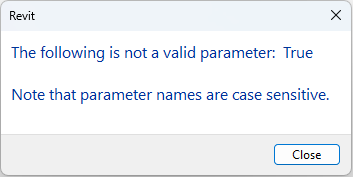
Result: The system reports the error ”The following is not a valid parameter: True …”. Cause: Revit does not recognize the text strings “True” or “False” as a valid Boolean value in this context.
Part III: Solution & Standard Syntax
To resolve this, we must replace the text keywords with equivalent mathematical expressions.
Correct syntax:
if(or(Width < 500mm, Length < 500mm), 2 < 1, 2 > 1) or
if(and(Width > 500mm, Length > 500mm), 2 > 1, 2 < 1)
Detailed Logic Explanation: if(or(Width < 500mm, Length < 500mm), 2 < 1, 2 > 1)
-
Test Condition:
or(Width < 500mm, Length < 500mm)This function check if either dimension is smaller than the standard (Inverse logic)
-
Value returned if Condition is TRUE (Fail):
2 < 1Since 2 cannot be less than 1, this is a mathematically false statement → Equivalent to FALSE (The object is Hidden).
-
Value returned if Condition is FALSE (Pass):
2 > 1Since 2 is greater than 1, this is a mathematically true statement → Equivalent to TRUE (The object is Visible).
Conclusion
Mastering comparison operators helps completely eliminate avoidable syntax errors during the Family creation process and other workflows. Instead of relying on text formats, you should adopt a mathematical logic mindset to ensures the stability of BIM environment.