Room Plan Creator
SheetsAutomated room sheet generator. Extracts room bounds, generates dedicated plan views, applies view templates, and places viewports onto newly created sheets.
Quick Workflow
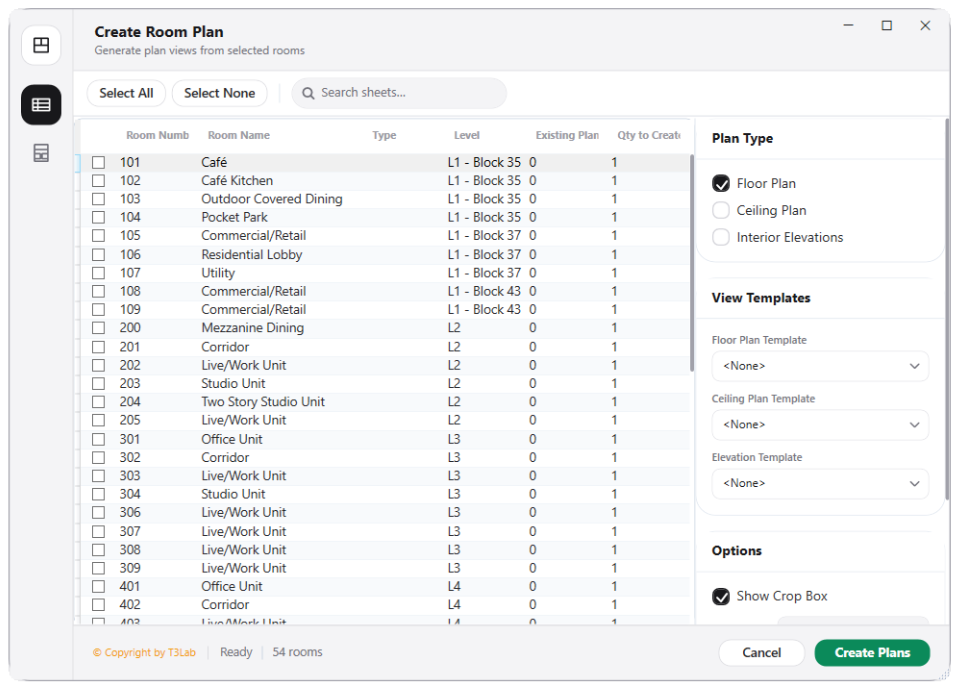
Open Room Plan Creator and check target rooms from the checklist.
Define plan boundary crop offsets, view scale, and view template.
Select Titleblock family and configure sheet naming rules.
Click Generate to build isolated room plan views and drawing sheets.
Interface Preview
Detailed Documentation
Room Plan Creator - User Guide & Reference
The Room Plan Creator utility (Sheets category) Generates complete drawing sheets and plan views from Room boundaries. Automates viewport creation, applies view templates, scales plan views, and arranges viewports onto newly created sheets..
1. Overview & Key Capabilities
The Room Plan Creator tool is designed to improve workflow efficiency by automating standard tasks. Key capabilities include:
- Generates complete drawing sheets and plan views from Room boundaries.
- Automates viewport creation, applies view templates, scales plan views, and arranges viewports onto newly created sheets.
2. Detailed Step-by-Step Usage
Follow these instructions to use the tool in your active Revit session:
- Open Room Plan Creator.
- Check rooms to process from the room checklist.
- Define plan offsets, scale rules, and select active view templates.
- Select Titleblock type and set sheet naming conventions.
- Click Generate to build isolated plan views and sheet drawings.
3. Technical Specifications & Under the Hood
Revit API Integration
- Key API Components:
ViewSheet.Createand viewport coordinates placement (Viewport.Create). Grid alignment math handles paper-size spacing coordinates. - Transaction Handling: All modifications are packaged into a single Revit API transaction. If any error occurs, the changes are rolled back automatically to preserve model integrity.
[!TIP] Best Practice Tip: Use viewport aligner to keep details in the exact same sheet location across multi-page structural drawing packages.