View Manager
ViewsUnified view management cockpit. Handles batch view renaming, viewport scale adjustments, view template auditing, and Excel metadata round-tripping.
Quick Workflow
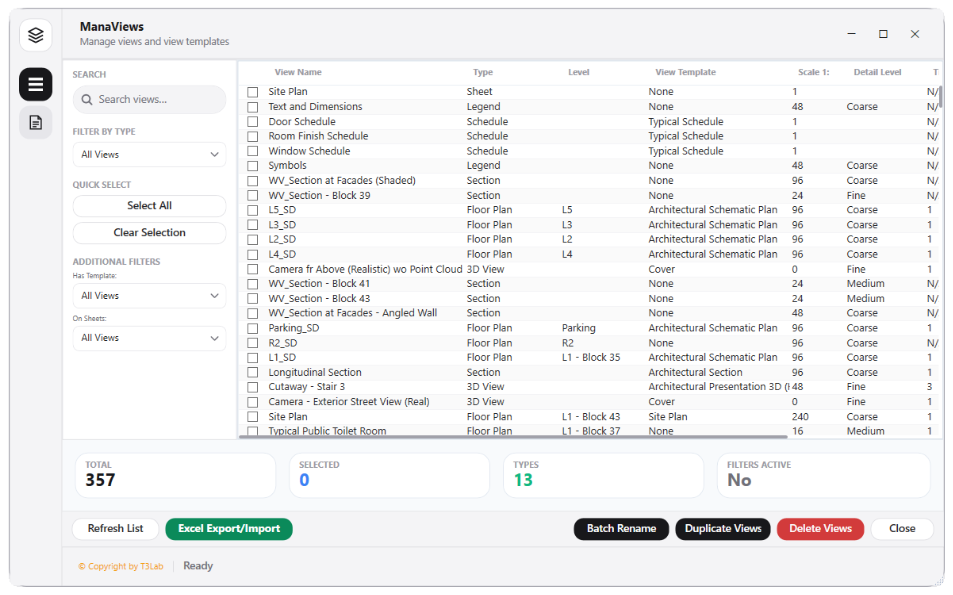
Open View Manager from Views & Sheets panel.
Filter views by type, level, or discipline.
Apply bulk updates: change naming patterns, view scales, or view templates.
Use Export to Excel to edit metadata in spreadsheet and import back.
Interface Preview
Detailed Documentation
View Manager - User Guide & Reference
The View Manager utility (Views category) Unified view management cockpit. Integrates the Advanced View Manager (copying, batch renaming, scaling, detail levels overrides, sheet title edits) and View Template Manager (batch applying, duplicating, and auditing template overrides). Supports Excel metadata round-tripping..
1. Overview & Key Capabilities
The View Manager tool is designed to improve workflow efficiency by automating standard tasks. Key capabilities include:
- Unified view management cockpit.
- Integrates the Advanced View Manager (copying, batch renaming, scaling, detail levels overrides, sheet title edits) and View Template Manager (batch applying, duplicating, and auditing template overrides).
- Supports Excel metadata round-tripping.
2. Detailed Step-by-Step Usage
Follow these instructions to use the tool in your active Revit session:
- Open View Manager.
- Select views from the list (filter by type, level, or name).
- Apply bulk modifications: update view naming templates, change viewport scales, or adjust detail levels.
- Click View Template tab to audit template assignments.
- Use Excel Export to dump view lists, rename them in Excel, and import back to execute updates.
3. Technical Specifications & Under the Hood
Revit API Integration
- Key API Components:
Viewtype creation, duplication, and view templates auditing (view.ApplyTemplate,view.GetTemplateOverrides). - Transaction Handling: All modifications are packaged into a single Revit API transaction. If any error occurs, the changes are rolled back automatically to preserve model integrity.
[!TIP] Best Practice Tip: Enforce template assignments rather than independent graphic overrides to ensure consistent documentation across views.