T3Lab Assistant
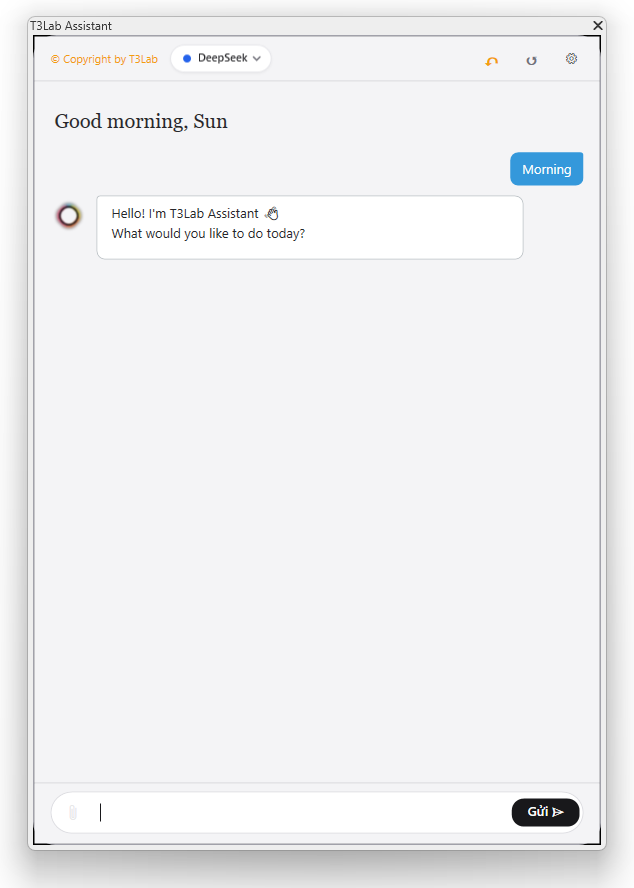
AI AssistantTrợ lý AI native tích hợp trực tiếp vào thanh Dockable Pane bên cạnh Project Browser và menu chuột phải (Revit 2025+). Hỗ trợ Tool Calling thực thi lệnh Revit, 25 Skills chuẩn hóa BIM (ISO 19650, BEP, QA...), hỏi đáp tài liệu RAG, sửa chính tả Text Notes và giải quyết ghi chú PDF comments.
Quick Workflow
Mở Dockable Pane "T3Lab Assistant" trên Revit hoặc click chuột phải chọn T3Lab Assistant.
Trò chuyện bằng tiếng Việt hoặc tiếng Anh để yêu cầu trợ lý kiểm tra mô hình hoặc thực thi tác vụ.
Sử dụng các lệnh gõ tắt dạng /skill-name (ví dụ: /iso-19650, /qa-checklist) để áp dụng quy trình chuẩn.
Trợ lý tự động đề xuất kế hoạch (Plan) và chỉ thay đổi mô hình khi bạn nhấn xác nhận.
Đính kèm hình ảnh hoặc tài liệu PDF để trợ lý đọc và xử lý trực tiếp.
Interface Preview
Detailed Documentation
T3Lab Assistant - Comprehensive Architecture & User Workflows
T3Lab Assistant is an AI chat assistant integrated directly into Autodesk Revit as a dockable WPF panel. It empowers BIM managers, architects, and structural engineers to interact with active Revit models using natural language instructions in Vietnamese or English.
The assistant converts human intentions into safe, transaction-bound Revit API calls, queries model geometry and spatial context, analyzes PDF drawings and image attachments, and coordinates multi-step automated workflows.
Key Features & Capabilities
- Natural Language Control: Enter commands like "Find all doors on Level 2 missing Mark values" or "Export all electrical sheets to PDF".
- Dockable WPF Interface: Fully integrated into the Revit UI, automatically adapting to Revit's Light/Dark mode themes (
RevitTheme.py). - Multi-Provider LLM Router (
LLMRouter): Supports Claude 3.5 Sonnet, OpenAI GPT-4o, DeepSeek, Ollama (offline), and LM Studio. - Safe Transaction Management (
revit_context.py): All modifying operations run withinExternalEvent.Createtransactions on Revit's main UI thread, guaranteeing model integrity. - Multi-Agent Specialist Dispatcher (
AgentDispatcher): Automatically routes incoming prompts to specialized AI agents (General, BIM Audit, Sheet Exporter, Parameter Editor, Spatial Coordinator). - RAG v2 & Attachment Analysis (
rag_processor.py): Attach PDF floor plans, specs, or screenshots for image processing and RAG vector store querying (knowledge_store.py). - Per-Document Chat History (
assistant_memory.py): Retains conversation history per Revit document with automatic context summarization across long sessions.
1. System Architecture & Component Diagram
flowchart TD
    UI["T3Lab Assistant (Dockable WPF Panel)"] --> Dispatcher["Multi-Agent Dispatcher (AgentDispatcher)"]
    Dispatcher --> Router["LLMRouter (Claude / GPT-4o / DeepSeek / Ollama / LM Studio)"]

    subgraph Context & Intelligence
        Scout["Context Scout (BIM Model & Selection)"]
        RAG["RAG v2 Store (PDF / Images / Project Specs)"]
        Tools["Tool Discovery Registry (110+ Revit Tools)"]
    end

    Router --> Scout
    Router --> RAG
    Router --> Tools

    Tools --> ContextRunner["Safe Revit API Context Isolation (ExternalEvent & Transactions)"]
    ContextRunner --> DB["Autodesk Revit Active Document DB"]
2. Detailed Operational Usage Flows
Flow 1: Natural Language Revit Command Execution Flow
This workflow illustrates how a natural language request (e.g. "Select all unplaced rooms and assign level offset") flows from user input to safe Revit execution.
sequenceDiagram
    autonumber
    actor User as "BIM Engineer"
    participant UI as "Assistant WPF Panel"
    participant Agent as "AgentDispatcher"
    participant Scout as "Context Scout"
    participant Router as "LLMRouter"
    participant Executive as "Revit API Context (revit_context.py)"
    participant Revit as "Revit Model DB"

    User->>UI: Types command (e.g. "Select unplaced rooms")
    UI->>Agent: Pass user prompt
    Agent->>Scout: Query active view, selection & document metadata
    Scout-->>Agent: Return BIM context summary
    Agent->>Router: Dispatch prompt + BIM context + tool schemas
    Router-->>UI: Stream reasoning & propose Action Proposal Card
    alt Manual Confirmation Mode
        UI->>User: Display Action Proposal Card with parameter diffs
        User->>UI: Click "Confirm"
    else Automatic Mode
        UI->>UI: Auto-approve execution
    end
    UI->>Executive: Trigger ExternalEvent transaction
    Executive->>Revit: Execute safe API modification in transaction
    Revit-->>Executive: Transaction success / return elements
    Executive-->>UI: Notify execution complete
    UI-->>User: Display success summary & update chat history
Step-by-Step Instructions for Flow 1:
- Launch Panel: Open Revit > T3Lab Ribbon tab > Support panel > click T3Lab Assistant.
- Type Request: In the chat box, type your request in Vietnamese or English.
- Context Gathering: The assistant automatically scans active view elements, selected instances, levels, and worksets.
- Review Action Card: Inspect the generated proposal card showing target element count and parameters to be modified.
- Confirm & Execute: Click Confirm. The transaction runs safely on Revit's main thread and updates the model.
Flow 2: Multimodal Attachment & RAG Document Analysis Flow
This workflow demonstrates attaching a PDF floor plan or specification document to compare against the active Revit model using vision and vector search.
flowchart TD
    A["User drops PDF drawing / Screenshot into Chat"] --> B["rag_processor.py: Extract pages & images"]
    B --> C{"Is Vision LLM Active?"}
    C -- "Yes (Claude / GPT-4o)" --> D["Build Vision Content Blocks"]
    C -- "No / Text Only" --> E["Extract Raw Text & Annotations"]

    F["User Query: 'Check model compliance with attached PDF'"] --> G["knowledge_store.py: Query Project RAG Index"]
    G --> H["Retrieve relevant BEP / Standard chunks"]

    D --> I["Synthesize Vision + RAG + Revit BIM Context"]
    E --> I
    H --> I

    I --> J["LLMRouter: Generate Compliance Audit Report"]
    J --> K["Display Interactive Audit Findings & Highlights in Chat"]
Step-by-Step Instructions for Flow 2:
- Drag & Drop Attachment: Drag a PDF specification, DWG screenshot, or design guide directly into the chat pane.
- Type Analysis Query: Type a comparison prompt (e.g., "Compare wall fire rating in attached PDF against active view walls").
- Automated Vector Search: The RAG engine searches project standards while the vision module reads drawing notes.
- Inspect Audit Report: Review the structured compliance table generated in chat, detailing matching and non-compliant elements.
Flow 3: Offline Local LLM Fallback & Memory Management Flow
This workflow details how the system optimizes local engines (Ollama / LM Studio) to operate safely offline without overflowing memory limits.
flowchart TD
    A["User selects Local LLM (Ollama / LM Studio) in LLMs Setting"] --> B["LLMRouter detects local provider"]
    B --> C["_num_ctx_for(): Calculate Dynamic Context Size (8k - 32k tokens)"]
    C --> D["Filter Tool Catalog: Limit 110+ tools to 39 Essential Tools"]
    D --> E["Construct compact prompt with core BIM query/edit tools"]
    E --> F["Pass to local GPU/RAM model engine (e.g. Qwen 2.5 Coder 7B)"]
    F --> G["Generate local function call / tool response"]
    G --> H["Execute transaction safely in Revit without internet access"]
3. Cloud API vs. Local LLM (Recommended Setup)
| Feature | Cloud API (Claude / GPT-4o / DeepSeek) | Local LLM (Ollama / LM Studio) |
|---|---|---|
| Context Window | Large (128k – 200k tokens). Reads full Revit model context, chat history, and complete 110+ tool catalog out-of-band. | Dynamic (8k – 32k tokens via num_ctx). Optimized for privacy and offline usage. |
| Tool Schema Handling | Native function calling out-of-band, preserving prompt cleanliness. | Prompt-injected catalog filtered to 39 essential tools to fit within memory budgets. |
| Tool Selection Accuracy | Near 100% accuracy on complex multi-step intentions. | >90% accuracy when using filtered essential catalog on 7B–8B models (e.g. Qwen 2.5 Coder). |
| Execution Speed | Fast, streaming response within seconds. | VRAM dependent; initial load takes a few seconds to initialize context memory. |
| Privacy & Internet | Requires internet access. API pay-as-you-go. | 100% offline. Zero subscription cost, strict data privacy. |
4. Multi-Agent Specialist Routing
The AgentDispatcher classifies incoming user prompts and delegates them to specialized AI sub-agents:
- General Assistant: General Revit queries, documentation, and standard chat.
- BIM Auditor: Evaluates model health, file footprints, warning logs, and unused element counts.
- Sheet & Export Specialist: Manages viewports, sheet numbering, title block data, and BatchOut exports.
- Parameter & Schedule Editor: Batch modifies element parameters, Excel round-trips, and parameter mapping.
- Spatial Coordinator: Analyzes location coordinates, room boundaries, containment, and level offsets.
5. How to Launch & Use
- Navigate to the T3Lab tab on the Revit ribbon > Support panel.
- Click T3Lab Assistant to open the dockable chat panel.
- Type natural language instructions in Vietnamese or English.
- Review the AI proposed action card and click Confirm to execute transactions in your model.
- Click the Gear Icon in the top-right corner to open LLMs Setting and switch providers anytime.